Quote of the Day

Echoes’ outlines Microsoft’s biggest challenges: the inordinate amount of time they spend on developing products that are either a platform or a suite forces them to make too many compromises. One can’t blame the company whose DNA is Windows (Platform) & a Suite (Office.) This is a malady which makes them unable to move ahead and define the future.

Om Malik

Normal posting resumes shortly.

Quote of the Day (this one is actually funny)

Robert Scoble and 20000 people walk into a bar. The bar man goes….

Speaking about ears, I have to say that Robert had some of the biggest ears ever seen on a human being, with the possible exception of Barack Obama. While people always talked about Robert’s big mouth, Robert said that his big ears, which allowed him to hear almost anything, were more important than his big mouth.

Know Robert Scoble? Know Twitter? Heard of FriendFeed? Read the rest of the (hilarious) story here.

WHS: Virtual Server

As I promised, I’m posting a How To for installing Virtual Server on WHS.

A word to the wise:

I’ve a 2.8Ghz Celeron D with 2GB RAM to run this on. Virtual Server can provision processor usage to an extent, but it uses RAM like there’s no tomorrow. Don’t forget that it has to play nicely with WHS (specifically DEmigrator.exe that burns CPU cycles) and other stuff like defrag passes and anti-virus.

Since WHS is built on top of Small Business Server,  the underlying OS is essentially the same. Hence no compatibility issues.

Installing Virtual Server is relatively straight forward.

First, download Virtual Server 2005 from here.

Then Download the Service Pack from here.

Open a Remote Desktop Session or use the Advanced Admin console tab to access the WHS desktop.

Now, its up to you whether you want to install the program files to C drive or D drive. Its worth noting that the Virtual Machines are stored separately in a location you specify on a per VM basis.

Once the install( including that of the service pack) is completed go to Start -> All Programs -> Microsoft Virtual server and hit the Administration Website shortcut.

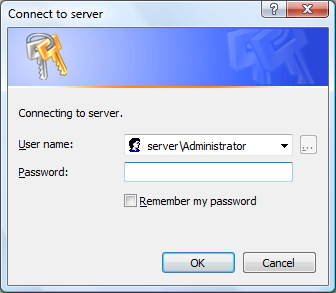
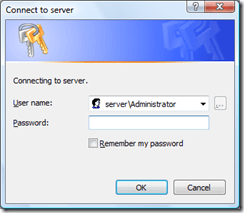
You get this:
image

Note: I was accessing this remotely so had to prefix the user name with “server\”.

Otherwise, these are your WHS credentials that you use to access the console or remote in to WHS.

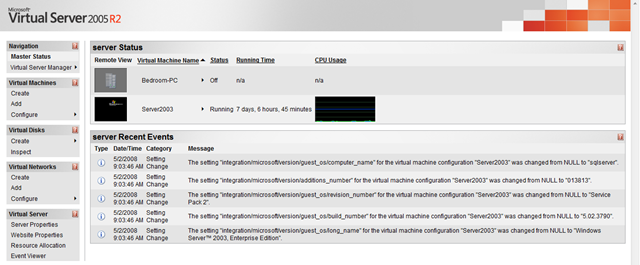
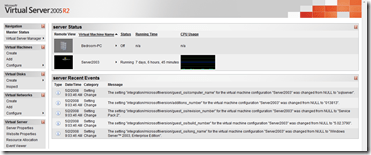
This is the webpage you get to (click for a larger version):
image

As you can see I have two virtual machines listed. One of which is currently  running.

I find that its easier to manage the server remotely, so copy the web site shortcut from the Start Menu to a network share. This now allows you to reach the web site from any connected PC.

If you’ve done this, close Remote Desktop and try it. The Default IIS settings that the install configures for you should be OK.

Setting up a Virtual Machine couldn’t be simpler:

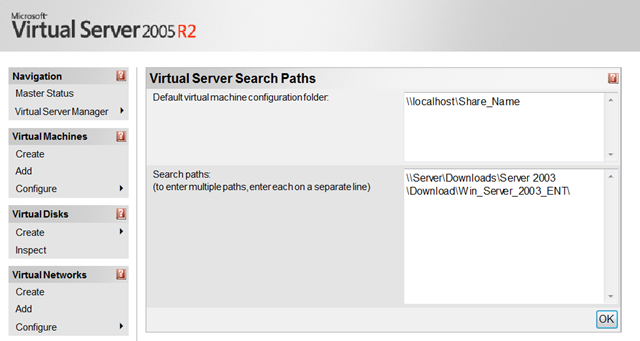
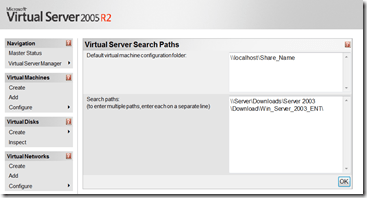
First we want to set the default location of our Virtual Machines. Go to Server Properties at the bottom of the Sidebar and click on Search Paths. Change the Default virtual machine configuration folder to your desired location. I’ve been using a network share with replication turned off.
image

You can also set default paths for ISO’s that you will use. These will show up when you configure the VM’s Cd/DVD drive.

And press Ok when you’re done.

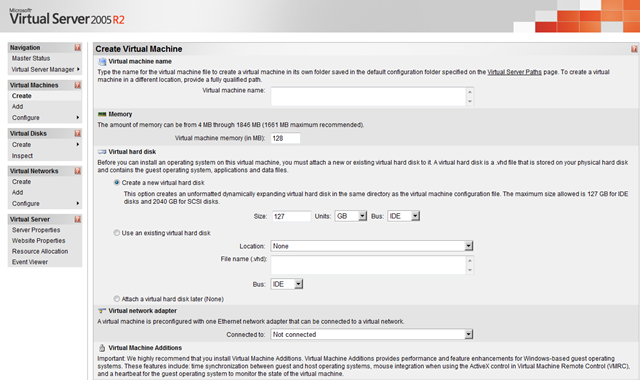
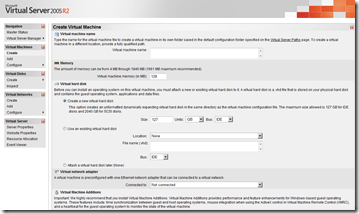
Hit Create under the Virtual machines section of the sidebar:
image

Enter all the info on the screen.

The RAM that the Virtual Machine is assigned is occupied as soon as the VM starts up. So be careful when doing this.

You have a choice of creating a new Virtual Hard Drive or attaching an existing one. make sure that the size of the hard drive is enough for your needs. Expanding it later can be a little difficult.  And choose a SCSI bus if you intend to have multiple VHDs attached to the same machine.

The VHD actual file size increases as you add data to it. It stops at the logical size of the VHD. So a 80Gb VHD can no be larger than 80Gb on disk.

You can also choose to create the VM without an attached hard disk.

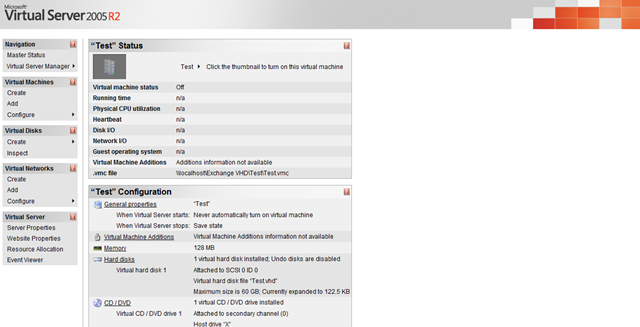
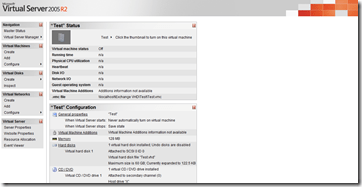
Pressing “create” takes us to the Vm config page:
image

You can also reach this page by selecting your VM from the Configure menu under the Virtual Machines Section of the Sidebar.

This is where you change items such as memory, hard disks, CD/DVD ROM drives, Networking, SCSI Adaptors, COM and  LRP ports.

Each option takes you to a new page were you configure settings specific to that area.

Its worth noting here that the VM needs to be Shutdown for some operations. But you can still change the location of the media that the CD/DVD ROM drive captures while the VM is running.

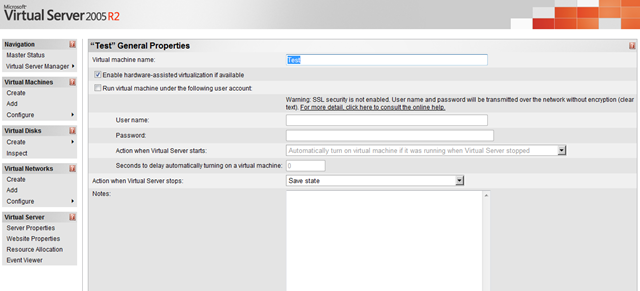
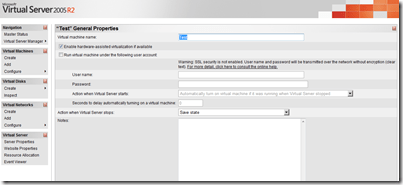
You can also set the VM to start up automatically with WHS by going to the Server properties.
image

With my Windows Server 2003 VM running constantly, the WHS automatic restarts could be a problem. All I do is check the box, input the account details, set a delay ( in my case, 600 seconds) and tell Virtual server to save the VM’s state when WHS shuts down. The delay is actually a pretty nifty feature as it allows WHS to initialise itself, bringing all its processes online, before starting the VM.

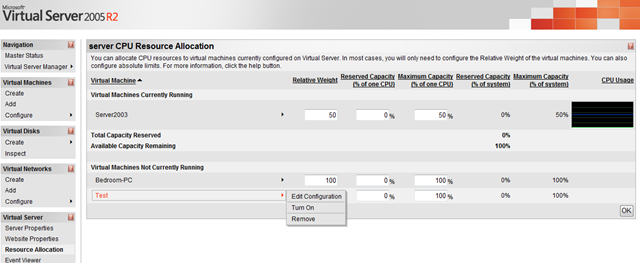
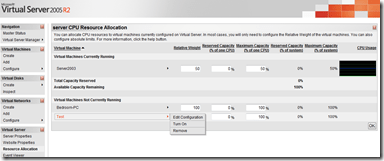
One more thing I have to cover for running this on WHS is Resource Allocation:
image

You’ll find it the bottom of the sidebar.

As you can see my VM has 50% Max Processor capacity to play with. This protects the WHS processes from being starved of resources.

Once you’ve got your VM set up and you’ve installed you software all you have to do is remote in using the Remote Control facility the web site provides you with ( its good for the initial setup such as enabling Remote desktop Connections and so forth). All you do is double click on the VM icon  on the front page.

I also recommend installing VM Additions (the ISO for it comes with Virtual Server and is a default option for the CD/DVDROM drive) that will improve the way the VM behaves within the Virtual Server environment.

Additionally, this post probably scratches the surface of what’s possible with this.

And I’m sure I’ve got a few things (unintentionally) wrong along the way so its not fool proof, so YMMV ( Your Mileage May Vary).

Happy Hacking…

Link of the Day

via Scott Rosenburg:

Pentagon’s Accounting Mess – Portfolio.com: Yet Another Federal Software Quagmire (cf. the IRS, the FBI, the FAA, etc.). An account of the Pentagon’s failure to upgrade its ancient mainframe-era accounting system; the tale unfolds in a building in Indianapolis the size of 28 football fields, and explains why the U.S. military cannot be audited. The Pentagon literally cannot tell you how much it has spent or what it has purchased. If you ran your family this way, they’d disown you.

Err, this is the 21st Century and this should not be too difficult to accomplish.

And they’re still using COBOL?? What can I say?

<humour> Solution? Call Microsoft </humour>

Subversion Source Control

This post has been bouncing around my head for sometime since finding the time to write has been a little hard.

The fact is that the whole Subversion vs Git vs TFS vs [insert preferred system here] debate can get to the point where its quasi-religious (as are numerous other tech debates – windows vs mac being one of the notable ones).

Now I, bad developer that I am, have only recently started using Subversion. The need to sync source code between my desktop and my laptop outgrew the copy/paste via Windows Home Server share approach.

The fact that Subversion is free is also a big deal maker ( compared to, say Team Foundation Server).

I have been using it on another free product, namely Netbeans 6.01 for my Java development. Its nothing major, only university projects. 

The fact is that Netbeans comes with Subversion and CVN support baked into the IDE. Additionally, Netbeans uses its own Local History feature to keep track of your files wether you’re using formal source control or not. Every time you build your project it makes a commit to your Local History. This means that one has both Local history for the small changes and Subversion for the big changes.

The fact is that having it baked into the IDE makes all the difference – it allows one to interact with the code in revisions directly. Let me explain. One can make line-by-line rollbacks from your previous versions wether you are using Local history or Subversion or both. Powerfully, the rollbacks count as changes to your code and are committed right back to the database.

(I plan to do a post on the value of a good IDE soon as well)

image

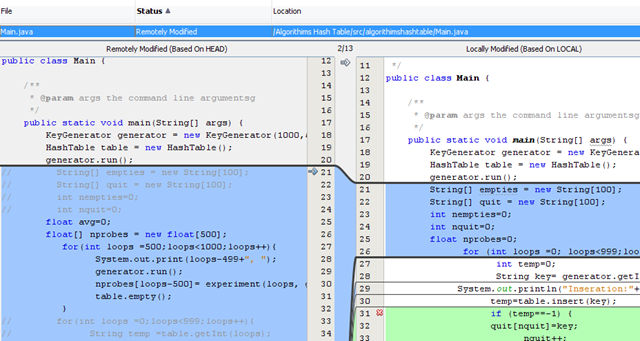
In the (Subversion) case above, the local copy is out of date (on the right) and the remote changes (on the left) are shown in blue. The changes were made on my laptop, committed and I’m comparing them against the desktop copy of the files.

By clicking on the blue arrow one can insert the changes into the local copy with out inserting all the changes. The same applies for replacements (in cases where the lines have been modified rather than outright replaced).

The green area in the local copy no longer exists and by clicking on the red cross one can delete the highlighted lines.

Local History works in exactly the same way.

This is a small example and one needs to actually use it to understand the power of the concept.

Now, the fact is that the vast majority of my coding gets done in Visual Studio. And Visual Studio , the TFS edition aside, does not support source control. Period.

However, VisualSVN actually has an Add-In for Visual Studio that brings this functionality into the IDE. The problem is  that the Add-In isn’t free. Its $49 per licence. Personal licenses are restricted to one per order ( but not corporate licenses) and open source projects qualify for free licenses. And, no, I haven’t yet decided whether to get a license.

I agree with Jeff Atwood that software such as Firefox should take the most popular Add-Ins and fold them in the main code base. Which gives rise to the question that if Source Control is so important and popular (is it for non-TFS Visual Studio users????), why doesn’t Microsoft add it in?

I mean its only Subversion. Surely Microsoft must have some pretty good selling points related to why TFS is, like, totally better than Subversion ( 😉 ). That takes care of the “They already have source control” pundits.

Source Control is simply good programming practice and if Microsoft is serious about attracting people to its platform (and the freely available express editions shows that they are somewhat serious), they should provide it.

Contrast Visual Studio to Netbeans and that’s enough said on the subject.

Now the easiest way to install Subversion is to head over to Jeff’s blog post about it. If you don’t subscribe to Jeff’s blog, i suggest that you do – its invaluable.

I went the VisualSVN server route which set everything up with the addition of  the ability to browse the server using a web browser (it does this by using Apache). To avoid Apache conflicting with Windows Home Server, its running on a Virtual Server virtual machine ( that image runs a few other odds and ends). Setting up Virtual Server on WHS is itself the subject of another blog post. It took me literally 2 minutes.

Before letting you go, Scott Hanselman has a great podcast on Subversion vs Git for Source Control and it comes highly recommended.

Quote of the Day

Nearly fell off my chair.

I think computer viruses should count as life. I think it says something about human nature that the only form of life we have created so far is purely destructive. We’ve created life in our own image.
  – Stephen Hawking

Strange, but true I suppose.

FriendFeed

After all the hype, I’m on FriendFeed.

Finally. In addition to my blog posts showing up there, I’m sharing my Link Blog and my SmugMug Photostream.

Here’s my page and the feed is in an unassuming text label under Feeds in  the column to your right. I’m going to try find or make a proper label for it, since it looks out of place at the moment.

It will be interesting to see which feed people prefer, the blogs’ feed or the FreindFeed one.

Aprils Fools 2008 (and a little late at that)

I think its becoming a tradition here to list some of the funnier April Fools Day pranks:

  • Read – Space bot demands to be called “Dextre the Magnificent”
  • Read – Google’s gDay with MATE searches the future
  • Read – Think Geek’s Betamax to HD-DVD Converter
  • Read – Qualcomm’s HandSolo
  • Read – Virgin and Google form Virgil for Mars expedition
  • Read – Xbox 360 Wireless Helmet, Board Game

More Google pranks here.

TUAW has a round up of the Apple Pranks.

Three from Sun Microsystems:

Windows Home Server: Resource Deconfliction

As more and more Windows Home Server Add-Ons are introduced, WHS becomes more and more like an appliance than a piece of software (and hardware).

More and more Add-ons mean that we ask more and more of our systems. These demands mean that finite resources have to allocated and shared with the WHS software itself.

DEMigrator.exe comes to mind ( the magic behind folder duplication). Since DeMigrator does not actually have a front end ( short of turning off folder duplication), it is impossible to pause or stop it when its running in favour of something more urgent. Granted we could change our backup window, but this is not always convenient or possible.

What WHS needs is some way of managing resources on a much more granular level than process priorities. By that I mean that WHS makes  a logical guess as to what process(es) need to run now  and what processes are less immediate.

So if I use SageTV to record show x at time y and a defrag ( or other processor intensive program) is scheduled to run at the same time, we need resource deconfliction to kick in and sort it out. We can do this in one of two ways: either throttle back the proccessor intensive process or re schedule it ( if the drive isn’t very fragmented a missed defrag pass wont make much of a difference).

Naturally, we can’t expect this souped up task scheduler to be able to handle every occurrence of every program. this means that WHS would simply notify the offending process(es) of the situation and it would be up to the program to implement a responsible and reasonable strategy to handle that.

If you’ve got a high end system running WHS, this discussion isn’t very dramatic. But between backups, defrags, virus scans, DeMigrator, SageTV  and others ad nauseam  ( even automatic Windows Update needs to be able to safely restart) jockeying for resources, something needs to manage this safely and well.

Essentially, this is bringing WHS closer to the headless system originally envisioned. It would save me a lot of Remoteing in every day.

Before we finish, let take a look at the specs for the WHS systems commercially available from HP, etc to get an idea of exactly what resources are available.

The Microsoft minimum spec is 1Ghz and 512Mb RAM and 1x 70Gb drive.

The recommended spec is 64-bit Compatible Intel Pentium 4, AMD x64 or newer with 512Mb Ram and 2x hard drives with a 300GB primary disk.

  CPU RAM Hard Drive
HP Media Smart AMD 1.8 GHZ 64-bit Sempron 3400+ processor 512Mb 2x 500Gb
Norco DS-520 Intel Celeron M 1GHz 1Gb 1x 250Gb
Piranha Home Server Intel Celeron 430 (1.8GHz, 512KB, Conroe) 1GB 2x250Gb
T2-WHS-A3 Harmony Home Server Intel Celeron 220 1.2GHz 512Mb (1Gb Optional) 1 x 500Gb (1Tb/2Tb Optional)
T7-HSA Harmony Home Server Via C7M “Esther” 1.5Ghz 512Mb (1Gb Optional) 1 x 500Gb (1Tb Optional)
My own homebuilt system (Dell  Poweredge SC440) Intel Celeron D 2.8Ghz 2GB 1x160Gb
1x400Gb
2x750Gb

I think this is a pretty representative sample of the entire range. You can get the reviews on these servers and others from We Got Served Hardware page.

NB. The extra possibilities of multi-core  64 bit machines allowing true concurrent execution are mind boggling.