Some Interesting Code – your thoughts required

Without going to into a long story, I found some interesting code here to convert anonymous types to any strongly typed, well, type.


public static object ToType<T>(this object obj, T type)
{

    //create instance of T type object:
    var tmp = Activator.CreateInstance(Type.GetType(type.ToString())); 

    //loop through the properties of the object you want to covert:          
    foreach (PropertyInfo pi in obj.GetType().GetProperties()
    {
      try 
      {   

        //get the value of property and try 
        //to assign it to the property of T type object:
        tmp.GetType().GetProperty(pi.Name).SetValue(tmp, 
                                  pi.GetValue(obj, null), null)
      }
      catch { }
     }  

   //return the T type object:         
   return tmp; 
}

From this codeproject article.

Anyone have any thoughts on this?  Is it good? Bad? Inefficient? Crap??

WCF Server Chat Update:

I just left this reply to a comment on my last post on this project:

Hi there,

No, I Haven’t been able to make in any changes sine my last comit.

However, I have been taking a look at it over the past week, since there are issues with it. As you say authentication and authorisation are one of them.

I’ve been looking at the possibility of using Forms authentication. This brings ASP.Net Membership, Profiles and Roles to the table and these can be used.

This of course requires a SQL server as a back end. And requires the use of SSL.

This requires significant changes to the code base, to move from the current storage model (XML in the case of the Windows service, and Azure Tables in the case of the Windows Azure role). And since authorisation and authentication are now handled separately, those WCF method calls that currently handle this aren’t required.

Also, since the codebase is effectively two separate projects, these changes need to be made twice.

The client will also need to be changed.

These changes do make a lot of sense and I’m well along in implementing them. So look out for a post soon on them.


I thought I’d let everyone know that this is the direction I’m taking things in.


Life is busy, which why I haven’t been able to update things as much as I’d like.

There is one other particular problem with the WCF Server chat that I would have liked to have solved in my last comitt.

The issue involves the server pinging other clients across NAT. Of course, this could be solved by moving to a pull model rather than a push notification model. While that would be easy, I want to take a good long look at getting push to work properly before trying any other models.

Push notification is where its at. So if anyone has any pointers to implementing it, please send it my way.

Windows Azure Block Blobs

In Windows Azure Blob Storage, not all blobs are created equal. Windows Azure has the notion of Page Blobs and Block Blobs.  Each of these distinct blob types aim to solve a slightly different problem, and its important to understand the difference.

To Quote the documentation:

  • Block blobs, which are optimized for streaming.
  • Page blobs, which are optimized for random read/write operations and provide the ability to write to a range of bytes in a blob.

About Block Blobs

Block blobs are comprised of blocks, each of which is identified by a block ID. You create or modify a block blob by uploading a set of blocks and committing them by their block IDs. If you are uploading a block blob that is no more than 64 MB in size, you can also upload it in its entirety with a single Put Blob operation.

When you upload a block to Windows Azure using the Put Block operation, it is associated with the specified block blob, but it does not become part of the blob until you call the Put Block Listoperation and include the block’s ID. The block remains in an uncommitted state until it is specifically committed. Writing to a block blob is thus always a two-step process.

Each block can be a maximum of 4 MB in size. The maximum size for a block blob in version 2009-09-19 is 200 GB, or up to 50,000 blocks.

About Page Blobs

Page blobs are a collection of pages. A page is a range of data that is identified by its offset from the start of the blob.

To create a page blob, you initialize the page blob by calling Put Blob and specifying its maximum size. To add content to or update a page blob, you call the Put Page operation to modify a page or range of pages by specifying an offset and range. All pages must align 512-byte page boundaries.

Unlike writes to block blobs, writes to page blobs happen in-place and are immediately committed to the blob.

The maximum size for a page blob is 1 TB. A page written to a page blob may be up to 1 TB in size.

So, before we determine what blob type we’re going to use, we need to determine what we’re using this particular blob for in the first place.

You’ll notice the above extract is quite clear what to use block blobs for: streaming video. In other words, anything that we don’t need random I/O access to. On the other hand page blobs have a 512-byte page boundary that makes it perfect for random I/O access.

And yes, its conceivably possible for you to need to host stuff such as streaming video as a page blob. When you think about this stuff to much, you end up imagining situations where that might be possible.  So, these would be situations where you are directly editing or reading very select potions of a file. If you’re editing video, who wants to read in an entire 4MB for one frame of video? You might laugh at the idea of actually needing to do this, but that the Rough Cut Editor is web based and works primarily with web-based files. If you had to run that using Blob storage as a backend you’d need to use page blobs to fully realise the RCE’s functionality.

So, enough day-dreaming. Time to move on.

Some groundwork

Now, in our block blob, each individual block can be a maximum of 4MB in size. Assuming we’re doing streaming video, 4MB is not going to cut it.

The Azure API provides the CloudBlockBlob class with several helper methods for managing our blocks. The methods we are interested in are:

  • PutBlock()
  • PutBlockList()

The PutBlock method takes a base-64 encoded string for the Block ID, a stream object with the binary data for the block and a (optional) MD5 hash of the contents. Its important to note that the ID string MUST be base-64 encoded or else Windows Azure will not accept the block. For the MD5 hash, you can simply pass in null.  This method should be called for each and every block that makes up your data stream.

The PutBlockList  is the final  method that needs to be called. It takes a List<string>  containing every ID of every block that you want to be part of this blob. By calling this methods it commits all the blocks contained in the list. This means, then, that you could land up in a situation where you’ve called PutBlock but not included the ID when you called PutBlockList. You then end up with an incomplete and corrupted file. You have a week to commit uploaded blocks. So all is not lost if you know which blocks are missing. You simply call PutBlockList with the IDs of the missing blocks.

There are a number of reasons why this is a smart approach.  Normally, I fall on the side of developer independence, the dev being free to do things as he likes without being hemmed in. In this case, by being forced to upload data in small chuncks, we realise a number of practical benefits. The big one being recovery from bad uploads – customers hate having to re-start gigabyte sized uploads from scratch.

Here be Dragons

The following example probably isn’t the best. I’m pretty sure someone will refactor and post a better algorithm.

Now there are a couple of things to note here.  One bring that I want to illustrate what happens at a lower level of abstraction that we usually work at, so that means no StreamReaders – We’ll read the underlying bytes directly.

Secondly, not all Streams have the same capability. Its perfectly possible to come across a Stream object where you can’t seek. Or determine the length of the stream. So this is written to handle any data stream you can throw at it.

With that out of the way, lets start with some Windows Azure setup code.

StorageCredentialsAccountAndKey key = new StorageCredentialsAccountAndKey(AccountName, Account Key);
CloudStorageAccount acc = new CloudStorageAccount(key, true);

CloudBlobClient blobclient = acc.CreateCloudBlobClient();
CloudBlobContainer Videocontainer = blobclient.GetContainerReference("videos");
Videocontainer.CreateIfNotExist();

CloudBlockBlob blob = Videocontainer.GetBlockBlobReference("myblockblob");

Note how we’re using the CloudBlockBlob rather than the CloudBlob class.

In this example we’ll need our data to be read into a byte array right from the start. While I’m using data from a file here, the actual source doesn’t matter.

byte[] data = File.ReadAllBytes("videopath.mp4");

Now, to move data from our byte array into individual blocks, we need a few variables to help us.

            int id = 0;
            int byteslength = data.Length;
            int bytesread = 0;
            int index = 0;
            List blocklist = new List();
  • Id will store a sequential number indicating the ID of the block
  • byteslength is the length, in bytes of our byte array
  • bytesread keeps a running total of how many bytes we’ve already read and uploaded
  • index is a copy for bytes read and used to do some interim calculations in the body of the loop (probably will end up refactoring it out anyway)
  • blocklist holds all our base-64 encoded block id’s

Now, on to the body of the algorthim. We’re using a do loop here since this loop will always run at least once (assuming, for the sake of example, that all files are larger than our 1MB block boundary)

do
            {
                byte[] buffer = new byte[1048576];
                int limit = index + 1048576;
                for (int loops = 0; index < limit; index++)
                {
                    buffer[loops] = data[index];
                    loops++;
                }

The idea (that of using a do loop) here being to loop over our data array until less than 1MB remains.

Note how we’re using a separate byte array to copy data into. This the block data that we’ll pass to PutBlock. Since we’re not using StreamReaders, we have to do the copy byte for byte as we go along.

It is this bit of code would be abstracted away were we using StreamReaders (or, more properly for this application, BinaryReaders)

Now, this is the important bit:

                 bytesread = index;
                string blockIdBase64 = Convert.ToBase64String(System.BitConverter.GetBytes(id)); //1

                blob.PutBlock(blockIdBase64, new MemoryStream(buffer, true), null); //2

                blocklist.Add(blockIdBase64);
                id++;
            } while (byteslength - bytesread > 1048576);

There are three things to note in the above code. Firstly, we’re taking the block ID and base-64 encoding it properly.

And secondly, note the call to PutBlock. We’re wrapped the second byte array containing just our block data as a MemoryStream object (since that’s what the PutBlock methods expects) and we’ve passed in null rather than an MD5 hash of our block data.

Finally, note how we add the block id to our blocklist variable. This will ensure that the call to PutBlockList will include the ID’s of all of our uploaded blocks.

So, by the time this do loops finally exits, we should be in a position to upload our final block. This final block will almost certainly be less than 1MB in size (barring the usual edge case caveats). Since this final block is less than 1MB, our code will need a final change to cope with it.

            int final = byteslength - bytesread;
            byte[] finalbuffer = new byte[final];
            for (int loops = 0; index < byteslength; index++)
            {
                finalbuffer[loops] = data[index];
                loops++;
            }
            string blockId = Convert.ToBase64String(System.BitConverter.GetBytes(id));
            blob.PutBlock(blockId, new MemoryStream(finalbuffer, true), null);
            blocklist.Add(blockId);

Finally, we make our call to PutBlockList, passing in our List array (in this example, the “blocklist” variable).

blob.PutBlockList(blocklist);

All our blocks are now committed. If you have the latest Windows Azure SDK (and I assume you do), the Server Explorer should allow you to see all your blobs and get their direct URL’s.  You can downloaded the blob directly in the Server Explorer, or copy and paste the URL into your browser of choice.

Wrap up

Basically, what we’ve covered in this example is a quick way of breaking down any binary data stream into individual blocks conforming to Windows Azure Blob storage requirements, and uploading those blocks to Windows Azure. The neat thing here is that by using this method not only does the MD5 hash let Windows Azure check data integrity for you, but block ID’s let Windows Azure take care of putting the data back together in the correct sequence.

Now when I refactor this code for actual production, a couple of things are going to be different. I’ll do the MD5 hash. I’ll upload blocks in parallel to take maximum advantage of upload bandwidth (this being the UK, there not much upload bandwidth, but I’ll take all I can get). And obviously, I’ll use the full capability of Stream readers to do the dirty work for me.

Heres the full code:

StorageCredentialsAccountAndKey key = new StorageCredentialsAccountAndKey(AccountName, Account Key);
CloudStorageAccount acc = new CloudStorageAccount(key, true);

CloudBlobClient blobclient = acc.CreateCloudBlobClient();
CloudBlobContainer Videocontainer = blobclient.GetContainerReference("videos");
Videocontainer.CreateIfNotExist();

CloudBlockBlob blob = Videocontainer.GetBlockBlobReference("myblockblob");

byte[] data = File.ReadAllBytes("videopath.mp4");

int id = 0;
int byteslength = data.Length;
int bytesread = 0;
int index = 0;
List blocklist = new List();

do
            {
                byte[] buffer = new byte[1048576];
                int limit = index + 1048576;
                for (int loops = 0; index < limit; index++)
                {
                    buffer[loops] = data[index];
                    loops++;
                }
                bytesread = index;
                string blockIdBase64 = Convert.ToBase64String(System.BitConverter.GetBytes(id));

                blob.PutBlock(blockIdBase64, new MemoryStream(buffer, true), null);

                blocklist.Add(blockIdBase64);
                id++;
            } while (byteslength - bytesread > 1048576);

            int final = byteslength - bytesread;
            byte[] finalbuffer = new byte[final];
            for (int loops = 0; index < byteslength; index++)
            {
                finalbuffer[loops] = data[index];
                loops++;
            }
            string blockId = Convert.ToBase64String(System.BitConverter.GetBytes(id));
            blob.PutBlock(blockId, new MemoryStream(finalbuffer, true), null);
            blocklist.Add(blockId);
            blob.PutBlockList(blocklist);

Holiday Reading iList

While I don’t usually do this before going on holiday, this time I’m not taking any dead tree books with me at all.

Rather, I’m taking my trusty iPad with IBooks and Kindle for iPad installed. Since we’re flying Ryanair, with their stickiness for baggage weights and sizes, he weight saved has been substantial. Usually I take a couple of paperbacks and a hardcover or two, so my bags a lot lighter this time around.

So, that reading list again, split up between iBooks and Kindle.

iBooks:

1. The Void Trilogy – Peter F Hamilton
2. Pandora’s Star – Peter F Hamilton
3. Judas Unchained – Peter F Hamilton
4. Servants of the People – Andrew Rawnsley
5. Life and Death of the Party – Andrew Rawnsley
6. Red November – W. Craig Reed
7. The Hobbit – J.R.R Tolkien
8. Paypal API’s Up and Running – Micheal Balderas

Kindle

1. The Design of Everyday Things – Don Norman
2. Dreaming in Code – Scott Rosenburg

I think that’ll keep me busy for a week 🙂

As you can see the above list is heavily biased towards iBooks. The ability to buy a book off iBooks without even thinking about it is the probable reason. Amazon Kindle gives you too much pause for thought.

About the Paypal API book. Yes, I’m sad. I do have the tendency to program while on holiday. If you’ll recall, I did some major re-architecting of my Client Server Chat project while is was in Spain in December. So goodness know what I might do this time around.

I hear the Design of Everyday Things is a seminal work and every designer should read it. Jeff Atwood of the Coding Horror blog (and Stackoverflow, StackExchange etc) highly recommends it.

Dreaming in Code is the most readable book about programmers and programming I’ve ever read. Though I must say reading it elicits the same reaction as watching Dennis Nedry screw Jurassic Park’s computer systems up: A Long Loud Cry of NOOOOOOOOOOOOOOOOOOOO!

Sightly changing the subject away from books, I got the Camera Connection Kit for my iPad. It’s works like a swiss car. If I could get Visual Studio on my IPad, I’d leave the laptop at home.

I’ll see you all in a week (and a bit, one always needs a holiday from holiday when you get back)

From the Department of MVC useful goodies (and sponsored by the department of Stackoverflow saved my butt)

I use the ipinfodb.com API in my app a lot to do geolocation. Well, as such things are wont to do, it went down for about an hour today. Curiously, the production site wasn’t affected at all, but my dev work was. So, in panic mode  I needed to add a country selector so that the rest of the site would have  the country information it needed. Now the reason there wasn’t one already was a deliberate design choice. So, i needed a backup plan for the next time ipinfodb went down.

As usual, Stackoverflow saved my butt (again). There’s a great answer that explains the way to do things in MVC using Razor.

Rather than steal the guys thunder, I’m just going to add one recommendation. In the body of the javascript function add the following:

location.reload();

And the page refreshes, including any changes triggered by the selection.

Go on and read the answer here.

Sitemaps in ASP.Net MVC: Icing on the Cake

This is short simple and sweet (forgive the pun).  The reason why i say that is that you have two options when doing a sitemap in MVC (actually, you have more, but whatever).

The first is using a Library. There’s a MVC Sitemap provider on Codeplex that you can download and install. It involves some XML configuration and attributes on all the actions you want to include in your sitemap.

The fact is, I don’t have time to fiddle around with configurations. I just want a simple sitemap file with a handful of products, categories and one or two other links. If the site was larger and more complex I might consider it.

So, we come to the second, DIY way. Now, this is not entirely my idea. I just repurposed it to pull the correct URL parameters out of the db. The original code is found on Codeplex.

Firstly, we have to register a new route to www.example.com/sitemap.xml. Go to Global.asax and put the following in your RegisterRoutes() method. I put mine after the call to IgnoreRoute.

routes.MapRoute("Sitemap", "sitemap.xml", new { controller = "Home", action = "Sitemap", id = UrlParameter.Optional });

Now, you can use any default routing you want with this. As you can see above, the route is pointing to the Sitemap action of the Home controller.

Then we have to actually populate our Action with some code.

  protected string GetUrl(object routeValues)
        {
            RouteValueDictionary values = new RouteValueDictionary(routeValues);
            RequestContext context = new RequestContext(HttpContext, RouteData);

            string url = RouteTable.Routes.GetVirtualPath(context, values).VirtualPath;

            return new Uri(Request.Url, url).AbsoluteUri;
        }
        [OutputCache (Duration=3600)]
        public ContentResult Sitemap()
        {
            var categories = storeDB.Categories.Include("Products").Where(g => g.Id != 8); //some filtering of categories
            XNamespace xmlns = "http://www.sitemaps.org/schemas/sitemap/0.9";
            XElement root = new XElement(xmlns + "urlset");

            List<string> urlList = new List<string>();
            urlList.Add(GetUrl(new { controller = "Home", action = "Index" }));
            urlList.Add(GetUrl(new { controller = "Home", action = "Terms" }));
            urlList.Add(GetUrl(new { controller = "Home", action = "ShippingFAQ" }));
            urlList.Add(GetUrl(new { controller = "Home", action = "Testimonials" }));
            foreach (var item in categories)
            {
                urlList.Add(string.Format("{0}?{1}={2}",GetUrl(new { controller = "Store", action = "BrowseProducts"}),"category",item.Name));

                foreach (var product in item.Products)
                {
                    urlList.Add(string.Format("{0}/{1}", GetUrl(new { controller = "Store", action = "ProductDetails" }), product.Id));
                }
            }

            foreach (var item in urlList)
            {
                root.Add(
                new XElement("url", 
                new XElement("loc", item), 
                new XElement("changefreq", "daily")));
            }

            using (MemoryStream ms = new MemoryStream())
            {
                using (StreamWriter writer = new StreamWriter(ms, Encoding.UTF8))
                {
                    root.Save(writer);
                }

                return Content(Encoding.UTF8.GetString(ms.ToArray()), "text/xml", Encoding.UTF8);
            }
        }

Essentially, we’re just outputting an xml file with the correct format and structure.  This gives us a file that looks like:

<?xml version="1.0" encoding="utf-8"?>

<urlset xmlns="http://www.sitemaps.org/schemas/sitemap/0.9">

  <url xmlns="">

    <loc>http://localhost:26641/</loc>

    <changefreq>daily</changefreq>

  </url>

  <url xmlns="">

    <loc>http://localhost:26641/Home/Terms</loc>

    <changefreq>daily</changefreq>

  </url>

  <url xmlns="">

    <loc>http://localhost:26641/Home/ShippingFAQ</loc>

    <changefreq>daily</changefreq>

  </url>

You get the idea.

The above code is using Entity Framework 4.1, so you can replace the line that declares  “var categories” with whatever data source you have. And you’ll have to reformat the url strings to conform to your parameter format.

Now I’m not suggesting this for any large MVC deployment. The code could get rather messy.


But for something simple, it works like a dream.

Using SQL Azure with ELMAH

If you don’t know what ELMAH is, stop right now and go and read about it.

ELMAH (Error Logging Modules and Handlers) is an application-wide error logging facility that is completely pluggable. It can be dynamically added to a running ASP.NET web application, or even all ASP.NET web applications on a machine, without any need for re-compilation or re-deployment.

Then go and read Scott “TheHa” Hanselman’s post on it.

There is a Nuget package for it as well, to make things really super easy.

In fact, running Nuget, setting up SQL Azure and tweaking some config settings took me all of 20 minutes. No freaking kidding. 

Now remember that this is being installed on an MVC site, so don’t let that put you off. Here we go:

Step One: Install from Nuget (making sure you have the latest build of Nuget in the process)

Step Two: Setup SQL Azure

Step Three configure web.config


And done Smile


So, lets go back and look at the details.

In step two, this is the SQL Azure script that the Migrate Assist wizard spat out:

--~Changing index [dbo].[ELMAH_Error].PK_ELMAH_Error to a clustered index.  You may want to pick a different index to cluster on.
SET ANSI_NULLS ON
SET QUOTED_IDENTIFIER ON
IF NOT EXISTS (SELECT * FROM sys.objects WHERE object_id = OBJECT_ID(N'[dbo].[ELMAH_Error]') AND type in (N'U'))
BEGIN
CREATE TABLE [dbo].[ELMAH_Error](
	[ErrorId] [uniqueidentifier] NOT NULL,
	[Application] [nvarchar](60) NOT NULL,
	[Host] [nvarchar](50) NOT NULL,
	[Type] [nvarchar](100) NOT NULL,
	[Source] [nvarchar](60) NOT NULL,
	[Message] [nvarchar](500) NOT NULL,
	[User] [nvarchar](50) NOT NULL,
	[StatusCode] [int] NOT NULL,
	[TimeUtc] [datetime] NOT NULL,
	[Sequence] [int] IDENTITY(1,1) NOT NULL,
	[AllXml] [nvarchar](max) NOT NULL,
 CONSTRAINT [PK_ELMAH_Error] PRIMARY KEY CLUSTERED 
(
	[ErrorId] ASC
)WITH (STATISTICS_NORECOMPUTE  = OFF, IGNORE_DUP_KEY = OFF)
)
END

IF NOT EXISTS (SELECT * FROM sys.indexes WHERE object_id = OBJECT_ID(N'[dbo].[ELMAH_Error]') AND name = N'IX_ELMAH_Error_App_Time_Seq')
CREATE NONCLUSTERED INDEX [IX_ELMAH_Error_App_Time_Seq] ON [dbo].[ELMAH_Error] 
(
	[Application] ASC,
	[TimeUtc] DESC,
	[Sequence] DESC
)WITH (STATISTICS_NORECOMPUTE  = OFF, IGNORE_DUP_KEY = OFF, DROP_EXISTING = OFF, ONLINE = OFF)
GO
IF NOT EXISTS (SELECT * FROM dbo.sysobjects WHERE id = OBJECT_ID(N'[DF_ELMAH_Error_ErrorId]') AND type = 'D')
BEGIN
ALTER TABLE [dbo].[ELMAH_Error] ADD  CONSTRAINT [DF_ELMAH_Error_ErrorId]  DEFAULT (newid()) FOR [ErrorId]
END

GO
SET ANSI_NULLS ON
SET QUOTED_IDENTIFIER ON
IF NOT EXISTS (SELECT * FROM sys.objects WHERE object_id = OBJECT_ID(N'[dbo].[ELMAH_GetErrorsXml]') AND type in (N'P', N'PC'))
BEGIN
EXEC dbo.sp_executesql @statement = N'
CREATE PROCEDURE [dbo].[ELMAH_GetErrorsXml]
(
    @Application NVARCHAR(60),
    @PageIndex INT = 0,
    @PageSize INT = 15,
    @TotalCount INT OUTPUT
)
AS 

    SET NOCOUNT ON

    DECLARE @FirstTimeUTC DATETIME
    DECLARE @FirstSequence INT
    DECLARE @StartRow INT
    DECLARE @StartRowIndex INT

    SELECT 
        @TotalCount = COUNT(1) 
    FROM 
        [ELMAH_Error]
    WHERE 
        [Application] = @Application

    -- Get the ID of the first error for the requested page

    SET @StartRowIndex = @PageIndex * @PageSize + 1

    IF @StartRowIndex <= @TotalCount
    BEGIN

        SET ROWCOUNT @StartRowIndex

        SELECT  
            @FirstTimeUTC = [TimeUtc],
            @FirstSequence = [Sequence]
        FROM 
            [ELMAH_Error]
        WHERE   
            [Application] = @Application
        ORDER BY 
            [TimeUtc] DESC, 
            [Sequence] DESC

    END
    ELSE
    BEGIN

        SET @PageSize = 0

    END

    -- Now set the row count to the requested page size and get
    -- all records below it for the pertaining application.

    SET ROWCOUNT @PageSize

    SELECT 
        errorId     = [ErrorId], 
        application = [Application],
        host        = [Host], 
        type        = [Type],
        source      = [Source],
        message     = [Message],
        [user]      = [User],
        statusCode  = [StatusCode], 
        time        = CONVERT(VARCHAR(50), [TimeUtc], 126) + ''Z''
    FROM 
        [ELMAH_Error] error
    WHERE
        [Application] = @Application
    AND
        [TimeUtc] <= @FirstTimeUTC
    AND 
        [Sequence] <= @FirstSequence
    ORDER BY
        [TimeUtc] DESC, 
        [Sequence] DESC
    FOR
        XML AUTO

' 
END
GO
SET ANSI_NULLS ON
SET QUOTED_IDENTIFIER ON
IF NOT EXISTS (SELECT * FROM sys.objects WHERE object_id = OBJECT_ID(N'[dbo].[ELMAH_GetErrorXml]') AND type in (N'P', N'PC'))
BEGIN
EXEC dbo.sp_executesql @statement = N'
CREATE PROCEDURE [dbo].[ELMAH_GetErrorXml]
(
    @Application NVARCHAR(60),
    @ErrorId UNIQUEIDENTIFIER
)
AS

    SET NOCOUNT ON

    SELECT 
        [AllXml]
    FROM 
        [ELMAH_Error]
    WHERE
        [ErrorId] = @ErrorId
    AND
        [Application] = @Application

' 
END
GO
SET ANSI_NULLS ON
SET QUOTED_IDENTIFIER ON
IF NOT EXISTS (SELECT * FROM sys.objects WHERE object_id = OBJECT_ID(N'[dbo].[ELMAH_LogError]') AND type in (N'P', N'PC'))
BEGIN
EXEC dbo.sp_executesql @statement = N'
CREATE PROCEDURE [dbo].[ELMAH_LogError]
(
    @ErrorId UNIQUEIDENTIFIER,
    @Application NVARCHAR(60),
    @Host NVARCHAR(30),
    @Type NVARCHAR(100),
    @Source NVARCHAR(60),
    @Message NVARCHAR(500),
    @User NVARCHAR(50),
    @AllXml NVARCHAR(MAX),
    @StatusCode INT,
    @TimeUtc DATETIME
)
AS

    SET NOCOUNT ON

    INSERT
    INTO
        [ELMAH_Error]
        (
            [ErrorId],
            [Application],
            [Host],
            [Type],
            [Source],
            [Message],
            [User],
            [AllXml],
            [StatusCode],
            [TimeUtc]
        )
    VALUES
        (
            @ErrorId,
            @Application,
            @Host,
            @Type,
            @Source,
            @Message,
            @User,
            @AllXml,
            @StatusCode,
            @TimeUtc
        )

' 
END
GO

Log in to SQL Management Studio and run that script against your chosen db and you’re good to go.


In step 3, there are 2 main things you want to do.

The first is obviously setting up ELMAH to talk to the db. We do it like so.

<elmah>
    <errorLog type="Elmah.SqlErrorLog, Elmah" connectionStringName="ConnectionStringhere" />
    <security allowRemoteAccess="yes" />
  </elmah>

And the second is securing the actual elmah.axd page.

  <location path="elmah.axd">
    <system.web>
      <authorization>
        <deny users="?"/>
        <allow roles="Administrator"/>
      </authorization>
    </system.web>
  </location>

And we’re done. Easiest thing I’ve ever done. Smile

Deploying your Database to SQL Azure (and using ASP.Net Membership with it)

Its been quite quiet around here on the blog. And the reason for that is the fact that I got asked by a Herbalife Distributor to put a little e-commerce site together (its called flying Shakes). So its been a very busy few weeks here, and hopefully as things settle down, we can get back to business as usual. I’ve badly neglected the blog and the screencast series.

I have a few instructive posts to write about this whole experience, as it presented a few unique challenges.

Now. I’m staring at the back end here since deploying the database to SQL Azure was the difficult part of deployment. The reason for this is mainly due to the ASP.Net Membership database.

But we’ll start from the beginning. Now I’m assuming here that your database is complete and ready for deployment.

Step 0: Sign up for Windows Azure (if you haven’t already) and provision a new database. Take note of the servers fully qualified DNS address and remember  your username and password. You’ll need it in a bit.

Step 1 Attach your database to to your local SQL Server. Use SQL Server  Management Studio to do that.

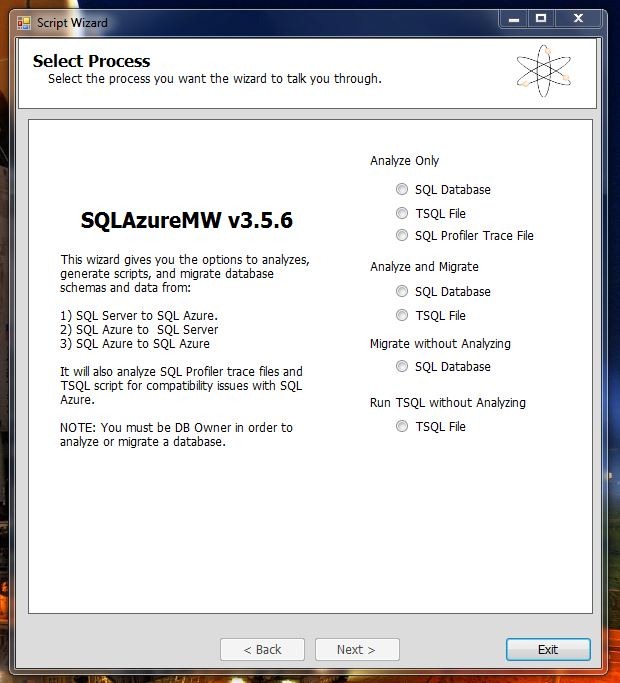
At this point  we have our two databases  and we need to transfer  the schema and data from one to the other. To do that, we’ll use a helpful little Codeplex project called SQL Azure Migration Wizard. Download it and unzip the files.

Run the exe. I chose Analyse and Migrate:

Capture


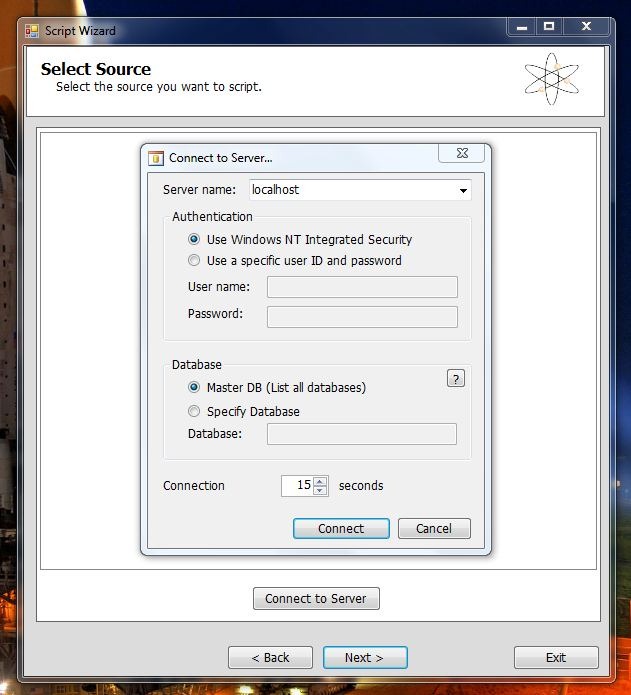
Enter your Local SQL Server details:

Capture2


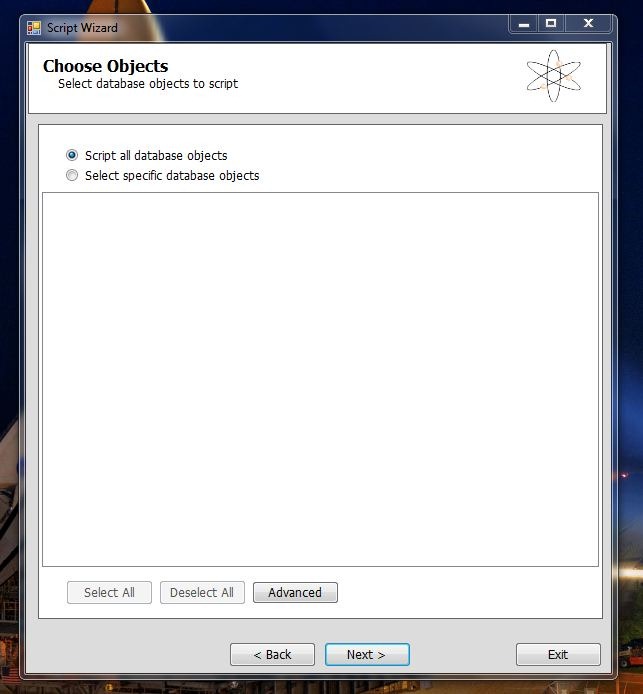
Capture3


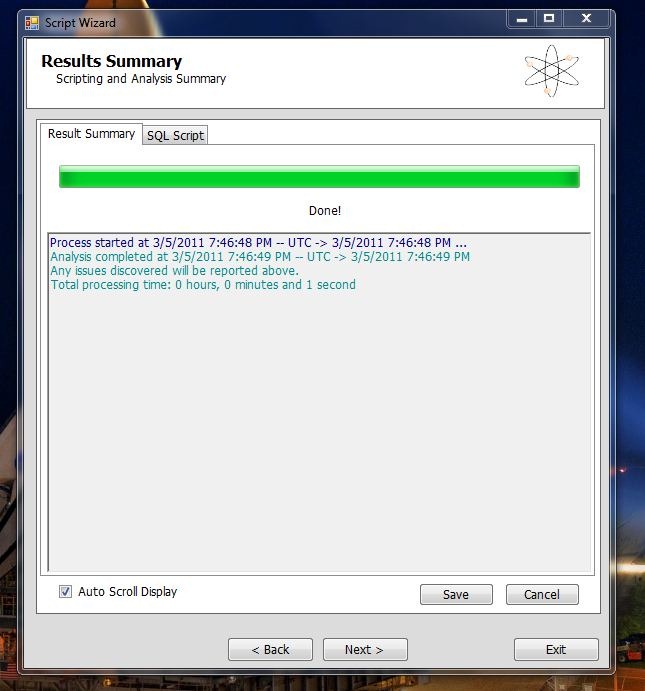
Hit Next until it asks if you’re ready to generate the SQL Scripts. This is the screen you get after its analyse the database and complied the scripts.

Capture4

Now you get the second login in screen that connects you to your newly created SQL Azure Database.

This is the crucial bit. You have to replace SERVER with your server name in both the server name box and the Username box, replacing username with your username in the process. You need to have @SERVER after your username or the connection will fail.

Capture5

Fill in the rest of your details and hit Connect. Press next and at the next screen you’ll be ready to execute the SQL scripts against your SQL Azure database.

And its that easy.

All you have to do is to go ahead and change your connection string from the local DB to the one hosted on SQL Azure.

There is one last thing to do. When you first deploy your site and try and run it against SQL Azure, it won’t work. the reason being is that you have to set a firewall rule for your SQL Azure Database by IP Address range. So you should receive an error message saying that IP address such and such is not authorised to access the database. So you just need to go ahead and set the appropriate rule in the Management Portal. You’ll need to wait a while before those settings take effect.

And you should be good to go.


The ASP.Net Membership Database

In the normal course of events, you can setup Visual Studio to run the SQL Scripts against whatever database you have specified in your connection string when you Publish your project. However, there is a big gotcha. The SQL Scripts that ship with Visual Studio will not run against SQL Azure. This is because SQL Azure is restricted.

Even if you log into your SQL Azure database using SQL Management Studio you’ll see that your options are limited as to what you can do with  the database from within SQL Management Studio. And if you try and run the scripts manually, they still wont run.

However, Microsoft has published a SQL Azure friendly set of scripts for ASP.net.

So we have two options: We can run the migrate tool again, and use the ASP.net Membership database  to transfer over Schema and Data. Or we can run the scripts against the database.

For the sake of variety, I’ll go through the scripts and run them against the database.

  1. Open SQL Management Studio and log into your SQL Azure Database.
  2. Go File-> Open and navigate to the folder the new scripts are in.
  3. Open InstallCommon.sql and run it. You must run this before running any of the others.
  4. For ASP.net Membership run the scripts for Roles, Personalisation, Profile and Membership.

At this point I need to point out that bad things will happen if you try running your website now, even if your connection string has been changed.

ASP.net will try and create a new mdf file for the membership database. You get this error:

An error occurred during the execution of the SQL file ‘InstallCommon.sql’. The SQL error number is 5123 and the SqlException message is: CREATE FILE encountered operating system error 5(failed to retrieve text for this error. Reason: 15105) while attempting to open or create the physical file ‘C:\USERS\ROBERTO\DOCUMENTS\VISUAL STUDIO 2010\PROJECTS\FLYINGSHAKESTORE\MVCMUSICSTORE\APP_DATA\ASPNETDB_TMP.MDF’. CREATE DATABASE failed. Some file names listed could not be created. Check related errors. Creating the ASPNETDB_74b63e50f61642dc8316048e24c7e499 database…

Now, the problem with all this is the machine.config file where all of these default settings actually reside. See internally, it has a LocalSQLServer connection string. And by default, the RoleManager will use it because its a default setting. Here’s what it looks like:

<connectionStrings>		
<add name="LocalSqlServer" connectionString="data source=.\SQLEXPRESS;Integrated security=SSPI;AttachDBFilename=|DataDirectory|aspnetdb.mdf;User Instance=true" providerName="System.Data.SqlClient"/>	</connectionStrings>
<system.web>		
<processModel autoConfig="true"/>	
<httpHandlers/>		
<membership>			
<providers>				
<add name="AspNetSqlMembershipProvider" type="System.Web.Security.SqlMembershipProvider, System.Web, Version=4.0.0.0, Culture=neutral, PublicKeyToken=b03f5f7f11d50a3a" connectionStringName="LocalSqlServer" enablePasswordRetrieval="false" enablePasswordReset="true" requiresQuestionAndAnswer="true" applicationName="/" requiresUniqueEmail="false" passwordFormat="Hashed" maxInvalidPasswordAttempts="5" minRequiredPasswordLength="7" minRequiredNonalphanumericCharacters="1" passwordAttemptWindow="10" passwordStrengthRegularExpression=""/>			</providers>		
</membership>
<profile>
<providers>	
<add name="AspNetSqlProfileProvider" connectionStringName="LocalSqlServer" applicationName="/" type="System.Web.Profile.SqlProfileProvider, System.Web, Version=4.0.0.0, Culture=neutral, PublicKeyToken=b03f5f7f11d50a3a"/>			</providers>
</profile>
<roleManager>
<providers>
<add name="AspNetSqlRoleProvider" connectionStringName="LocalSqlServer" applicationName="/" type="System.Web.Security.SqlRoleProvider, System.Web, Version=4.0.0.0, Culture=neutral, PublicKeyToken=b03f5f7f11d50a3a"/>				<add name="AspNetWindowsTokenRoleProvider" applicationName="/" type="System.Web.Security.WindowsTokenRoleProvider, System.Web, Version=4.0.0.0, Culture=neutral, PublicKeyToken=b03f5f7f11d50a3a"/>
</providers>
</roleManager>
</system.web>

So, we have to overwrite those settings in our own web.config file like so:

<roleManager enabled="true" defaultProvider="AspNetSqlRoleProvider"> 
<providers>
<clear/>
<add name="AspNetSqlRoleProvider" connectionStringName="..." type="System.Web.Security.SqlRoleProvider, System.Web, Version=4.0.0.0, Culture=neutral...."/> 
</providers>
</roleManager>
<membership>
<providers> 
<clear/>
<add name="AspNetSqlMembershipProvider" type="System.Web.Security.SqlMembershipProvider.... connectionStringName=""..../>        </providers> 
</membership>
<profile>
<providers>
<clear/>
<add name="AspNetSqlProfileProvider" connectionStringName="" type="System.Web.Profile.SqlProfileProvider..../>
</providers> 
</profile>

Now, what we are doing here is simply replacing the connectionstringaname attribute in each of these providers with our own connection string name. Before that, however, we put “<clear/>” to dump the previous settings defined in the machine.config file and force it to use our modified settings.

That should  allow the role manager to use the our SQL Azure database instead of trying to attach its own. Things should run perfectly now.

Finally

The Azure Management Portal has a very nice UI for managing and editing your database. You can add and remove tables, columns rows etc. Its really good. And rather welcome. I thought I’d have to script every change and alteration.

Windows Azure Feedreader Episode 8

Apologies for the long delay between episodes. I do these in my spare time and my spare time doesn’t always coincide with a quite environment to record the screencast.

But safe to say, I’m super excited to be back and doing these once again.

So, to it!!

This week we follow straight on from what we did in week 7, and modify our backend code to take account of user subscriptions when adding RSS feeds and RSS feeds from OPML files.

Additionally, we lay the ground work for next weeks episode where we will be writing the code that will update the feeds every couple of hours.

And finally, and perhaps most importantly, this week we start using the Windows Azure SDK 1.3. So if you haven’t downloaded and installed it, now is  the time.

There are some slight code modifications to take account of some breaking changes in 1.3 that are detailed in Steve Marx’s post on the subject.

Finally, I’ve just realised that the episode contains the wrong changeset information. The correct changeset is: 84039 (I’ll be correcting this slight oversight. Perfectionism demands it)

So, enjoy the show:

Remember, you can head over to vimeo.com to see the show in all its HD glory.

As I said, next week, We’ll be writing the update code that will automatically update all RSS feeds being tracked by the application.

Client Server Chat with WCF

Almost a year after I wrote this post promising to keep WCF Chat updated, I’m living up to that promise and updating my WCF Chat application over on Codeplex. The original release on Codeplex is actually just a zip file with the project in it. All things considered it was a knee-jerk posting in the mist of the openFF effort to clone Friendfeed. Of course, the original, actual reason why I posted it is lost to history. And in the middle of all that  hoohah I never wrote an introduction to and an explanation of the codebase.

An Introduction


The WCF Chat application was actually a class assignment for a class that included, among other things, WCF, REST and TCP. Its actually interesting to see how that class has changed since I took it three years ago. This year, for example, its including MVC, but I digress. The fact is that my submission did go above and beyond the requirements. And the reason for that is that once I wrote the basic logic, the more complicated stuff was easy. In other words: given enough layers of abstractions, anything is easy.

Having dusted off and worked with the code for a few hours, its rather amazing how easy a chat application is. Now, that statement should be taken in the context of the fact that WCF is doing most of the heavy lifting. So getting the client to ask for data is a relatively trivial task. The tricky bit is the need for a callback.

In this case, I use callbacks for Direct Messages and File transfers. Now, you are probably wonder why I went through the trouble given that the sensible option is simply to poll a server. And it is a sensible option. Tweetdeck, Seesmic and other twitter clients all use polling. Basically, it was in the requirements that there should be two way communication. There are a number of way sto implement this. One could, for example, have a WCF service on the client that the server can call back to. This did occur to me, but its a complex and heavy handed approach, not to mention a resource intensive one. WCF always gives me headaches and so I was only going to do one service. So I wrote a TCP listener that received pings from the server on a particular port.

Thats one peculiarity about this app. The other is the way the server is actually written. We have the WCF service implementation and we have a second server class that the WCF service calls. There is a division of responsibility between the two. The service is always responsible for getting the data ready for transmission and the server does the actual application logic.

The client is fairly straightforward. It uses the Kryton Library from the Component Factory. Its a great UI library that I use anytime I have to write a Windows forms UI. The actual UI code is rather like the Leaning Tower of Pisa – its damn fragile. Basically because it relies on the component designer logic for the way controls are layered. So I haven’t touched it at all. In fact, I haven’t needed to. More on this later.

When you are looking at the client code, you’ll realise that for each type of message control, there is a message type base control. The reason for this is that I foolishly (and successfully) tried to use generic controls. In the current implementation, there is actually precious little code in the MessageBase control. The reason  for this is mainly historical. There was originally a lot of code in there, mainly event code. In testing, I discovered that  those events weren’t actually firing for reasons beyond understanding. So they were moved from the inherited class to the inheriting class.  This is the generic control.

There are message type base controls that inherit from the MessageBase control, and pass in the type (Post, DM, File). This control is in turn inherited by the actual Message, DM or File control. The reason for this long inheritance tree is that the designer will not display generic controls. Rather, that was the case. I’ve yet to actually try it with Visual Studio 2010 Designer. As I said, I haven’t changed the client UI code and architecture at all.

The client has a background thread that runs a TCP Listener to  listen for call backs from the server. Its on a background thread so that it does not block the UI thread. I used a background worker for this rather than the newer Task functionality built into .Net 4 that we have today.

Functionality


Basically, every one sees all the public messages on a given server. There is no mechanism to follow specific people or ever to filter the stream by those usernames. Archaic, I know, But I’m writing my chat application, not Twitter.

There are Direct Messages that can be directed to a specific user. Because the server issues callbacks for DM’s, they appear almost instantly in the users stream.

You can send files to specific users as well. These files are stored on the server when you sent them. The server will issue a call back to the user and the file will be sent to them when the client responds to that callback.  You can also forward a file you have received to another user. Files are private only by implication. They are able to be accessed by whoever is informed of the files existence.

All of the above messages are persisted on the server. However, forwarding messages is not persisted in any shape or form.

Also, you can set status. This status is visible only when you are logged in. In fact, your username is only visible to others when you are logged in.

It should be noted that you have to use the Server Options panel to add and remove users.

Todays Release


Todays changes basically upgrade everything to .Net 4  and make sure its compatible. Todays release does not take advantage of anything new other than some additional LINQ and extension methods. Taking advantage of the new stuff will require a careful think of how and where to use them. I’m not quite willing to sacrifice a working build for new code patterns that do the exact same thing.

The original server was actually just a console application. I took that original code and ported it to a Windows Service. There were trivial logic changes made at most. The UI ( i.e the Options form) that was part of that console application has been moved into its own project.

I also ported the server code to a Windows Azure web role. And let me tell you something- it was even easier that I had anticipated. The XML file and the collections I stored the streams  in  are replaced with Windows Azure Tables for Users, Streams, DMS and Files. The files themselves are written to Windows Azure Blobs rather than being written out to disk. 

The web role as written is actually single instance. The reason is that the collection that stores the active users (i.e. what users are active right now) is still a collection. I haven’t moved it moved it over to windows azure tables yet. You could fire up more than one instance of this role, but all of them would have a different list of active users. And because Windows Azure helpfully provides you with a load balancer, there’s no guaranteeing which instance is going to respond to the client. There is a reason why i haven’t move that collection over to Windows Azure Tables. Basically, I’m not happy with it. If Azure had some sort of caching tier, using Velocity or something so i could instantiate a collection of objects to the cache and have all instances share that collection. The Windows Azure table would be changing from minute to minute with Additions, Edits and Deletions and I don’t think Windows Azure Tables would keep up. I’m interested to now what you think of this.

I also added an Options application to talk to the Windows Azure Web Role, and I wrote a WCF web service in webrole to support this application.

The client  is essentially the same as it has always been. There is the addition of a domain when you are logging in – this could be for either cloud or service based server implementations. Since there is no default domain, the client needs one when you are logging in.  The client will ask for one when logging in. once you have provided one, you’ll have to restart the application.

There are installers for all the applications except for the Cloud project. The service installer will install both the service and the Options application.

Bear in mind that for the Options Applications, there is no authentication and authorisation. If you run the app on a server with the ChatServer installed, or you point the CloudOptions app at the appropriate server, you are in control. This is a concern to me and will be fixed in a future release.

Future changes


I was tempted to write a HTTP POST server for all this. MVC makes it so easy to implement. There would be plenty of XML flying back and forth. Some of the WCF operations would require some high-wire gymnastics to implement as HTTP POST, but its possible. I might to this.

The one thing that I didn’t update was the version of the Kryton UI library I use. I’d very much like to use the latest version to write a new UI from scratch. Again its a possibility.

The fact is that once you start thinking of implementing following a la twitter, your database schema suddenly looks much more complicated. And since I’m not writing Twitter, I’ll pass.

If you have any suggestions on future changes, holler.

Final Words


Bear in mind that for the Options Applications, there is no authentication and authorisation. If you run the app on a server with the ChatServer installed, or you point the CloudOptions app at the appropriate server, you are in control. This is a concern to me and will be fixed in a future release.

Also, bear in mind that this is marked Alpha for a reason. If it eats your homework and scares your dog, its not my fault – I’m just some guy that writes code.

Finally, this code all works IN THEORY. I’ll be testing all these pieces throughly in the coming weeks.

Where you can get it


You can get it off Codeplex. The source code for all the above mentioned components is checked into SVN source control.

For this 1.1 Alpha release, you’ll find each setup files for each component in a separate downloadable zip file. The CloudServer code is included as is, since no setup files are possible for Cloud projects.