Windows Azure Feed Reader Episode 4: The OPML Edition

As you’ve no doubt surmised from the title, this weeks episode deals almost entirely with the OPML reader and fitting it in with the rest of our code base.

If you remember, last week I showed a brand new version of the OPML reader code using LINQ and Extension Methods. This week, we begin by testing said code. Given that its never been been tested before, bugs are virtually guaranteed. Hence we debug the code, make the appropriate changes and fold the changes back into our code base.

We then go on to creating an Upload page to upload the OPML file. We store the OPML file in a Blob and drop a message in a special queue for this OPML file to be uploaded. We make the changes to WorkerRole.cs to pull that message off the queue and process the file correctly, retrieve the feeds and store them. If you’ve been following along, none of this code will be earth shattering to you either.

The fact is that a) making the show any longer would bust my Vimeo Basic upload limit  and b) I couldn’t think of anything else to do that could be completed in ~10 minutes.

The good thing is that we’re back to our 45 minute-ish show time, after last weeks aberration.

Don’t forget, you can head over to Vimeo to see the show in all its HD glory: http://www.vimeo.com/14510034

After last weeks harsh lessons in web-casting, file backup and the difference between 480p and 720p when displaying code, this weeks show should go perfectly well.

Enjoy.

Remember, the code lives at http://windowsazurefeeds.codeplex.com

PS. Some occasional interference in the sound. I’m wondering if the subwoofer is causing it while I’m recording it. Apologies.

Windows Azure Feed Reader, Episode 2

A few days late (meant to have this up on Tuesday). Sorry. But here is part 2 of my Series on building a Feed Reader for the windows Azure platform.

If you remember, last week we covered the basics and we ended  by saying that this week’s episode would be working with Windows Azure proper.

Well this week we cover the following:

  • Webroles (continued)
  • CloudQueueClient
  • CloudQueue
  • CloudBlobClient
  • CloudBlobContainer
  • CloudBlob
  • Windows Azure tables
  • LINQ (no PLINQ yet)
  • Lambdas (the very basics)
  • Extension Methods

Now, I did do some unplanned stuff this week. I abstracted away all the storage logic into its own worker class. I originally planned to have this in Fetchfeed itself. This actually makes more sense than my original plan.

I’ve added Name services classes for Containers and Queues as well, just so each class lives in its own file.

Like last weeks, this episode is warts and all. I’m slowly getting the hang of this screencasting thing, so I’ll be getting better as time goes on I’m sure. Its forcing me to think things through a little more thoroughly as well.

Enjoy:

Next week we’ll start looking at the MVC project and hopefully get it to display a few feeds for us. We might even try get the OPML reader up to scratch as well.

PS. This weeks show is higher res than the last time. let me know if its better.

Quick thoughts on the AppleTv rumours.

4882762097_ee547914db

The rumours are:

  • Supposedly will be priced at $99 which isn’t too bad of a price
  • It will basically be a little, iPhone 4 without the phone or screen…
  • The insides supposedly will be iPhone 4 like:  A4 CPU, 16GB of flash storage
  • Supposedly can only handle up to 720p video
  • Apple will be officially changing the name of the device to iTV…

I just left this reply to this post on the GeekTonic blog discussing the AppleTv rumors that will not die.

Well… 1080i or p is only really viable if you have cable internet… and its a really small market. So 720p is pretty much a good bet as the default res.

I don’t care what anybody says – I ain’t streaming movies. Not with a 15gb fair use download cap. I’m getting a local copy of everything. Download once re-use all over the house. However, a 16Gb capacity is barely enough for the photos I have on the Apple Tv. Currently I play all my TV shows off the server rather than sync them. So while not being able to cache much content locally on the device, as long as i can download a copy to the server, I’m happy.

An App Store would be great – though I would assume it wouldn’t be backwards compatible with older AppleTvs – since it would require apps to be recompiled ( or even re-written) for the older hardware/CPUs.

The $99 price point is also awesome. It does open up the market. Its under the psychological $100 barrier – so people will be more likely to buy it.

The form factor is a persistent rumour – however I don’t see the logic of it. Given the clutter in the TV closet, there’s a real chance of me loosing it. However it will be a boon to those who already have too many set-top boxes in their Tv closets – look out for Steve to mention this prominently in any event. I still think its possible that Apple may keep the current form factor in some way.

However, unless the new Apple Tv ( or as you say, iTV) launches with some really awesome apps that will be worth the outlay of $99, I can’t see myself rushing out to buy one. Since we got satellite Tv installed with the accompanying HD-PVR a few weeks back, the use of the AppleTv has declined a lot – like 2 or 3 times a week as opposed to every day. Purchases sinc3e can be counted on one hand.
So a bit of a mixed reaction to this.

WHS – Setting up a VPN server

I’m away on holiday next week and thought, like any good geek, I’d set up a VPN connection to my Windows Home Server.

The thing is that there are Add-Ins that will set up a VPN server for you.

However, by way of The MS Home Server Blog, there is a delightful little walkthrough that is remarkably simple.

This is for when the WHS console just won’t quite do it.

I configured my iPhone with the VPN details, and will probably just RDP in through it. I setup the laptop with it as well – so being able to work remotely now makes this little holiday a little less likely to be relaxing 🙂

I’ll let you know how it goes.

Oil Spills Live Feeds App 1.4 – Alpha

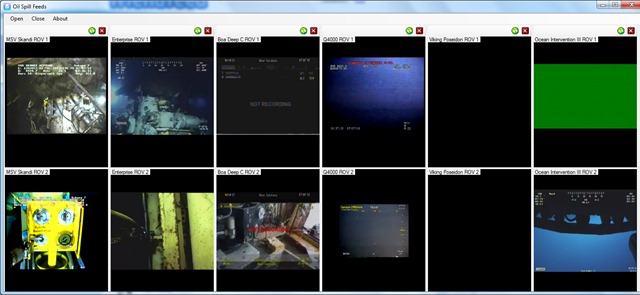
Just pushed out a new version of the application. I added the live feeds from the Ocean Intervention II and Viking Poseidon.

So there are a total of 12 feeds available forming 6 panels:

SpillFeeds6

As usual you can add and remove panels as you wish:

image


This is an alpha release, so it still needs work.


You can download it from here: http://oilslickfeeds.codeplex.com/releases/view/48477

I’ll let you know when a more polished build is done.

Awesome code is awesome (LINQ plus Lambdas edition)

While going through my feeds this evening, I found this awesome article from LukeH. He built a raytracer using nothing but C# LINQ to Objects and Lambdas.

While its clear abuse of the syntax (I can imagine my SQL-pure professors having a heart attack at seeing their beloved syntax used this way), it is freaking cool. Head over to read the article and try parsing that monster LINQ statement (I’ll not steal his thunder by posting it here).

Secondly, related to that, is a post on the recursive lambda expressions that Luke uses. I knew I should have paid more attention in maths. 🙂

As a side note, it makes more sense from a programming perspective than it does from a purely math oriented point of view. Had I written my math exam in C# lambdas, I may have got a higher mark 🙂

Both of the above posts show if code that is above and beyond what I do. I remember doing a happy dance a while back after first cutting my teeth with LINQ plus lambdas in the same statement, which now seems a bit premature 🙂

This does speak volumes about the state of C# as a language. It’s an exciting time to be a programmer. 

Screencast Plans

So, I’m prepping to make a start on the screen cast series on Building a Feedreader on Windows Azure. I thought I’d make a list of things to do both  for the screencast itself and for the code.

So this post will be updated as I think of things.

After the test I ran by doing a screencast on the Oil Spills app, I figured that I’m dispensing with the webcam overlay – its too distracting.

Also as the test showed, I’m gonna have to deal with frequent interruptions – for drinking water, for screwing up the explanation of something etc.  So I’m gonna have to record each part in a number of separate chuncks and join them together with Windows Live Movie Maker.

Also, I decided that its best not to start from scratch. I’m gonna have some of the code already written, namely the data access layer for Windows Azure Tables. Two reasons for this. One I have to make adjustments of the previous version of DAL. Two it’s practically boilerplate code and I don’t want to bore you.

After the final commit for each episode, I’ll post the link to the changeset, so you can download the code.

Finally, as we get later into the series (even the earth took 7 days to create), I may do an intro to recap the previous week using the webcam.

Now I do want to add one new feature for sure – and thats shared items, as Google Reader does. This will be entirely straightforward. items will be added to a RSS feed of shared items from that user. On request, i just read the blob and return the contents as an RSS file.

Now one thing is for certain – I’m definitely doing to do some things wrong in my code. So please be nice and pointed out. :)  Or, even better, submit a diff file correcting it 🙂

My RSSCloud Server: Thinking of doing some screencasts.

This year was my last at Uni ( actually, i still have an exam to write, so the past tense isn’t accurate). As is typical with Honours year undergraduates, a final year project was set.

If you are regular reader of this blog, you’ll probably know that what i picked was a RSSCloud server running on Windows Azure. However, as they say on the home shopping networks, THERES MORE! My project needed a little more body to it. So I added an online Feedreader, in other words a poor (dirt-simple) imitation of Google Reader.

Now, this app uses a number of technologies for which it would be a pretty cool demo project. Windows Azure itself (obviously), Windows Azure Tables and Blobs, LINQ, WCF, MVC2 and so on. This includes it being a demonstrator of the RSSCLoud specification itself.

Although its an academic submission, my lecturers are fine with me opensourceing it.

Given the rise of .Net 4, and the experience points gained writing the first version, I feel that everyone would be better served with a rewrite. Not to mention the fact that It’ll give me a chance to use the new Windows Azure Tools for Visual Studio.

As I re-write it, I think a screencast series is in order. All the code will be checked in to codeplex. This’ll give everyone a chance to double check my logic (particularly interested in what Dave Winer thinks of my implementation of RSSCloud).

So, firstly, What do you think?

And secondly, anyone know a good hosting provider? I don’t know about Youtube. But Vimeo looks pretty good. If their limit is 500Gbs/per week upload space, it’ll give me chance to do one video each week, more or less.

I have all the software required to pull this off. So thats not a problem. I actually did a screencast of a live coding session in class for one of my lectures (writing an interpreter turns out to be pretty fun, actually).

i think this would be a pretty good contribution to the community as a whole.

Running Windows Communication Foundation on Windows Azure

In a perfect world, these two Microsoft products would Just Work. Unfortunately, it does not quite work that way in practice.

In general, WCF can be run in a number of ways.

  • The First is to use IIS to host your service for you. IIS will take care of port mapping between internal and external ports.
  • The Second is to self host. This means that your process will create a ServiceHost, passing in the appropriate class. Your service is responsible for error handling and termination of the WCF service. The service class itself can contain the Service behaviour attributes or you can stick them in the app.config file.  This also means that you have to ensure that the WCF service is listening  on the correct port when you create it.

In Windows Azure terms, the first method would be a Web role, and the second method would be a worker role.

It should be noted that all of the above methods and code patterns are perfectly legitimate ways to create and host a WCF service. The question here is, which of these ways will run on Windows Azure.

Programming for Windows Azure is generally an easy thing so long as your application start up code is correct. If there are any exceptions in your start up code, the role will cycle between Initializing, Busy and Stopping. Its enough to drive you mad. Therefore, if you choose to self host, you need to be sure that your worker role code runs perfectly.

For all your Windows Azure applications its also a good idea to create a log table using Windows Azure tables to assist you in debugging your service.

Now, before you begin any WCF Azure work, you need to install a patch. WCF can exhibit some strange behaviour when deployed behind a load balancer.Since all Windows Azure service instances are behind a LB by default, we need to install this patch. This patch is also installed in the cloud.

You can find the patch, as well a thorough run down of all the WCF issues in Azure here. While I’m not attempting to tackle all of the problems, and indeed the solutions to them, i do aim to get a basic service working with as little fuss as possible.

IIS Hosting

It must be said that i did try all sorts of settings in the config file. It turns out that the one with almost no actual settings is the one that works. basically this forces us to rely on IIS to do the configurations for us. On one hand this is a good thing, saving us the hassle. On the other, there is some loss of control that the programmer in me does not like.

Firstly, lets look at the config file. This section is vanilla. And basically what you’ll get when you add the WCF Service Web Role via the Add New Role dialog.

<system.serviceModel>
<services>
<service name="WCFServiceWebRole1.Service1" behaviorConfiguration="WCFServiceWebRole1.Service1Behavior">
<!-- Service Endpoints -->
<endpoint address="" binding="basicHttpBinding" contract="WCFServiceWebRole1.Service1">

</endpoint>
<endpoint address="mex" binding="mexHttpBinding" contract="IMetadataExchange"/>
</service>
</services>
<behaviors>
<serviceBehaviors>
<behavior name="WCFServiceWebRole1.Service1Behavior">
<!-- To avoid disclosing metadata information, set the value below to false and remove the metadata endpoint above before deployment -->
<serviceMetadata httpGetEnabled="true"/>
<!-- To receive exception details in faults for debugging purposes, set the value below to true.  Set to false before deployment to avoid disclosing exception information -->
<serviceDebug includeExceptionDetailInFaults="false"/>
</behavior>
</serviceBehaviors>
</behaviors>
</system.serviceModel>

If you deploy this file to the cloud, the role will initialise and start up correctly. However, at this point, the service is not aware of anything outwith the load balancer. In fact, if you deploy the WCF web role template to the cloud it will start up and run perfectly, albeit only behind the LB.

Now for the actual service code.  This code is actually from a REST service I wrote. It basically provides a interface for the RSSCloud specification (sorry Dave). So we can talk to the RSS Cloud server using HTTP Post, REST and any WSDL client.

[ServiceContract]
[AspNetCompatibilityRequirements(RequirementsMode = AspNetCompatibilityRequirementsMode.Allowed)]
[ServiceBehavior(InstanceContextMode = InstanceContextMode.PerCall)]
public class Service1
{

[WebInvoke(Method = "POST", UriTemplate = "pleasenotify/notifyProcedure/{notifyprocedure}/port/{port}/protocol/{protocol}/domain/{domain}/url/{url}"), OperationContract]
String RequestNotification(string notifyprocedure, int port, string path, string protocol, string domain, string url)
{
// this change to the storage model is intended to make scaleing easier.
// the  subscribers will be stored perblog in individual blobs
// the table will store the blogids, the blogurls and the last modified date of the blob file.
DateTime Timestamp = DateTime.Now;
XmlDocument thedoc = new XmlDocument();

string name = BlobNameServices.generateBlobName(url);

if (name == null)
{
name = BlobNameServices.CreateBlobEntry(url, source);
}
// Set the metadata into the blob

string hash = Utils.HashToBase64(domain + path + port + protocol + url);

insertTable(name, hash, notifyprocedure, port, path, protocol, domain, url);

requestqueue.AddMessage(new CloudQueueMessage(name));

return "reply";
}

[WebInvoke(Method = "POST", UriTemplate = "recivenotify/url/{url}"), OperationContract]
String RecieveNotification(string url)
{
recieverqueue.AddMessage(new CloudQueueMessage(url));

return "Recieved";
}

[WebInvoke(Method = "POST", UriTemplate = "ping/url/{value}"), OperationContract]
String Ping(string value)
{
char[] chars = value.ToCharArray();

//we have a potential inconsistancy here - the url is passed as an arguement,
//whereas for notifications the blog id is passed as an argument

pingqueue.AddMessage(new CloudQueueMessage(value));

String result = "You said: " + value;

return result;
}

}

I arrived at this code by taking the vanilla WCF webrole and combining it with the WCF REST template and replacing the template code with my own code

Amazingly enough, it will work. Up to a point though. When you hit the svc file, it points you to a WSDL BEHIND the load balancer, using the local instances’  address. Obviously, we can’t get to it. So, we have to modify our WSDL very slightly to take advantage of the patch mentioned above.

<behaviors>
<serviceBehaviors>
<behavior name="WCFServiceWebRole1.Service1Behavior">
<!-- To avoid disclosing metadata information, set the value below to false and remove the metadata endpoint above before deployment -->
<serviceMetadata httpGetEnabled="true"/>
<!-- To receive exception details in faults for debugging purposes, set the value below to true.  Set to false before deployment to avoid disclosing exception information -->
<serviceDebug includeExceptionDetailInFaults="false"/>
<useRequestHeadersForMetadataAddress>
<defaultPorts>
<add scheme="http" port="8080" />
</defaultPorts>
</useRequestHeadersForMetadataAddress>
</behavior>
</serviceBehaviors>
</behaviors>
<pre>

If you hit the service now, the WSDL file is now pointing to the correct address and you can get to it. So any WSDL client can now talk to your service.

You want to make sure that the port selected in in the webrole settings matches the port you have in the Request headers section. Whether that is port 80 or something else. If you have an HTTPS end point, you need to add it as well to get it to work.

Self Hosting

Now, I’ve tried self hosting. This is the idea.

string port="";
try
{
port = RoleEnvironment.CurrentRoleInstance.InstanceEndpoints["WCFEndpoint"].IPEndpoint.Port.ToString();
}
catch
{
port = "8000";
}
try
{
using (ServiceHost svcHost = new ServiceHost(typeof(RssNotifyService), new Uri(http://northwind.cloudapp.net: + port)))
{

svcHost.Open();
while (true)
{
//do somthing
}
svcHost.Close();
}
}
catch(Exception ex)
{
CloudStorageAccount acc = CloudStorageAccount.FromConfigurationSetting("DataConnectionString");
LogDataSource log = new LogDataSource(acc);
log.Insert("WCF",ex.Message,"Error",DateTime.Now);

}

For this to work you need to have a HTTP in port set in your web role settings. In this case it was port 8000.

While the above will work in the development fabric, it won’t  in the cloud. But it demonstrates the idea.

At the end of the day, there is not very much to set up if you are writing a new WCF service with minimal custom configuration.

So, install the patch and watch that config file.

PS. Many thanks to Steve Marx ( Windows Azure Program Manager) for his help with this.